👋 Attendance Guidelines
Daily Desk - Daily working hours
🙋♂️ Introduction
We use Daily Desk for attendance tracking and Work From Home (WFH) requests.
🏡 How to Apply for Work From Home?
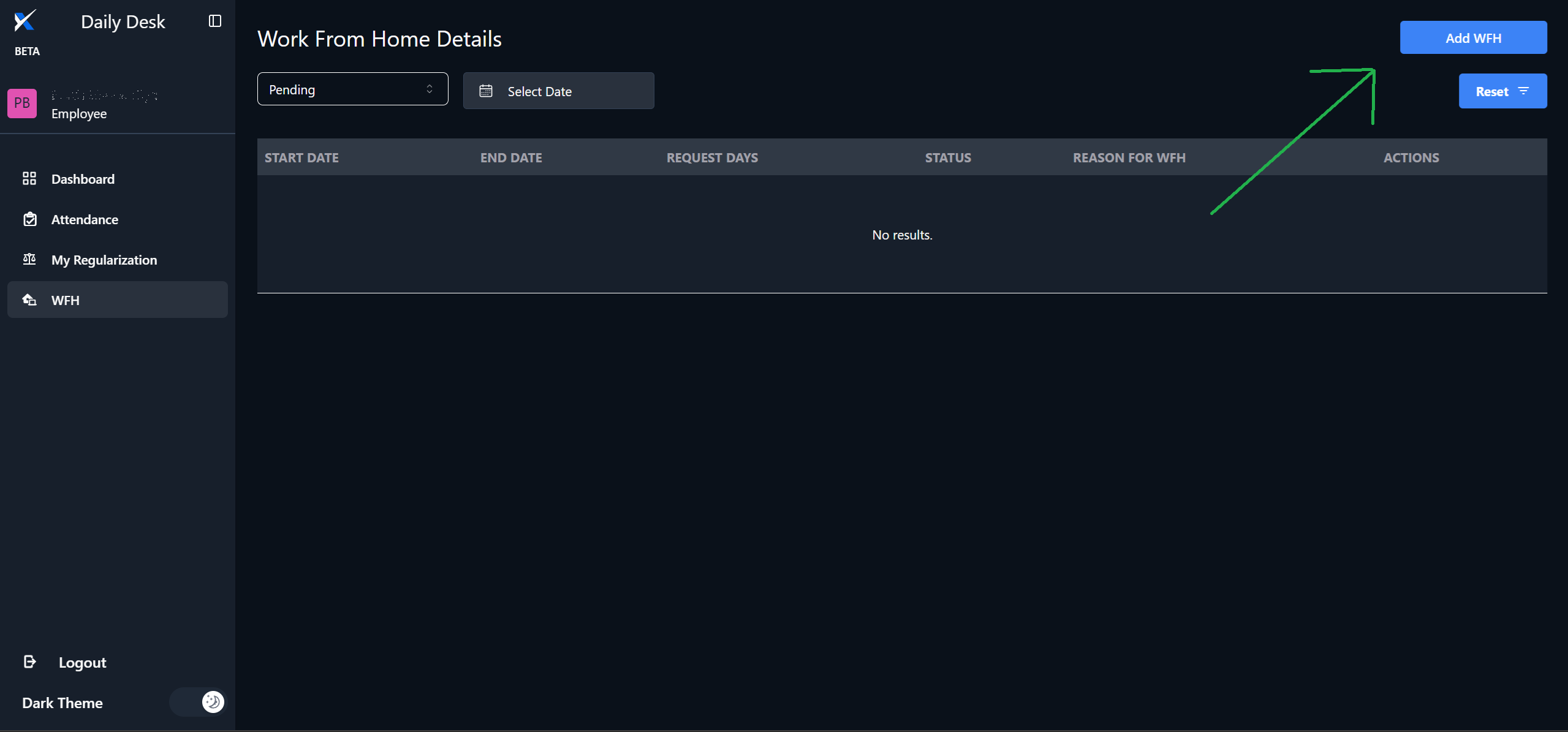
1️⃣ Open the WFH Application Page
2️⃣ Click on [ Add WFH ]
3️⃣ Select Start & End Date
- For a single-day request, select the same date for both.
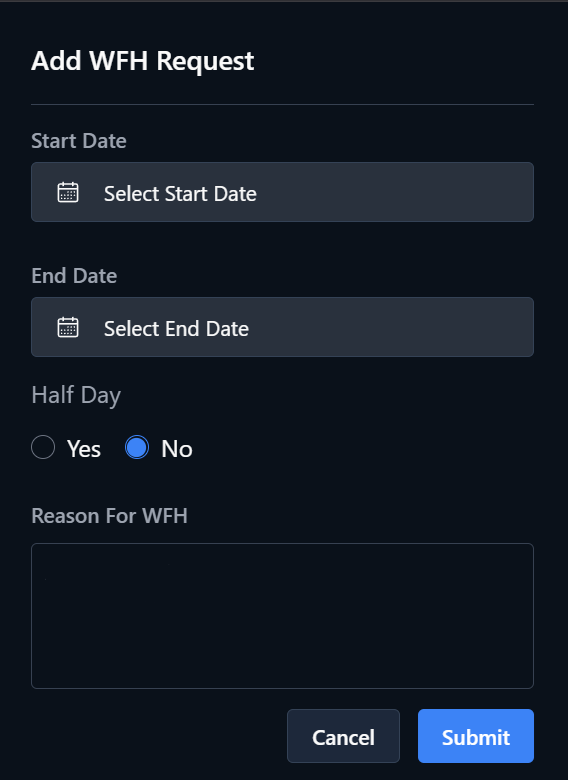
4️⃣ Half Day?
- Check Yes in the Half Day checkbox if applicable.
5️⃣ Add a Reason
- Clearly mention the reason for your WFH request.
6️⃣ Submit the Request
- Click the Submit button to complete the process.
📅 Attendance Regularization
🔹 Navigate to the Attendance Section from the left menu.
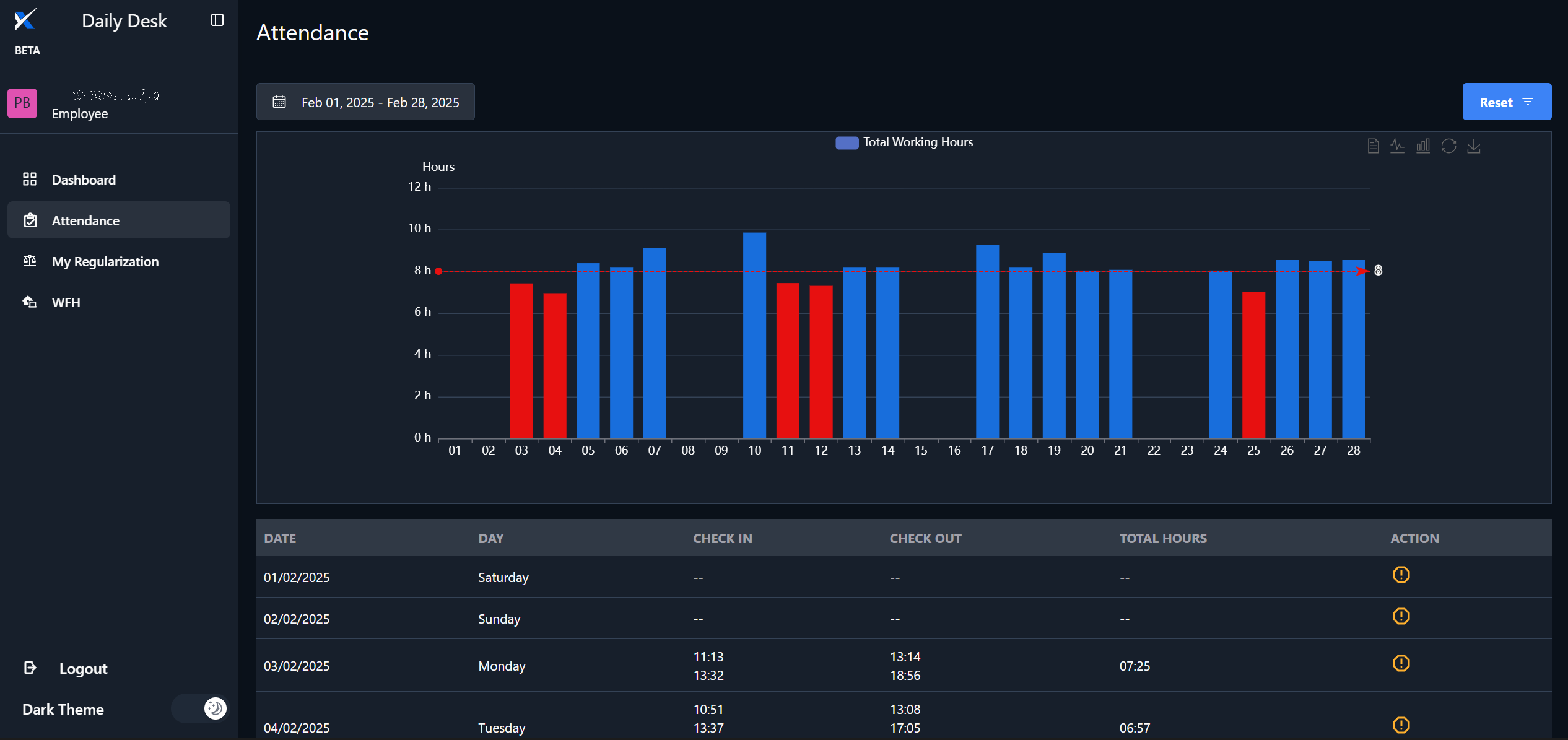
🔹 Under the Action column, locate the ⚠️ Icon.
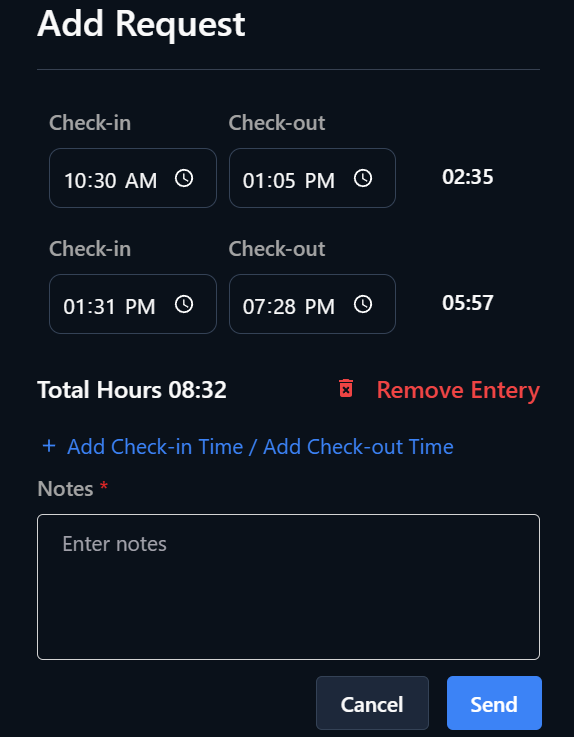
🔹 Click on the icon to raise a regularization request.
🔖 Bookmarks
Here are some useful links for quick access:
🔗 Daily Desk Login: Daily Desk
🔗 Dashboard: Dashboard
🔗 Attendance: Attendance
🔗 Apply for WFH: Work From Home