💵 Leaves and Payroll
Portal Details
The Kiara People Portal is the primary system for managing all HR tasks — leave applications, salary slips, holiday lists, and personal details. Log in with the credentials provided at the time of joining.
Leave Types Explained
Casual Leave
Casual leave is granted for short-term personal needs such as emergencies, family events, or unforeseen circumstances. It is typically limited in number per year and requires prior approval or immediate intimation.
Half-Casual Leave
Half-casual leave allows employees to take leave for a half-day instead of a full day. This is useful for attending appointments, personal errands, or minor emergencies without using a full leave day.
Special Leave
Special leave is granted for specific situations such as marriage, bereavement, or maternity/paternity. These leaves often have a predefined duration and require official documentation for approval.
Internship Leave
Internship leave is provided to employees or students who need to take time off for internships related to their academic exams. Approval is needed for these kind of leaves.
Unpaid Leave
Unpaid leave is taken when an employee has exhausted their paid leave balance or is taking extended time off without salary compensation. Approval is usually required, and it may impact employment benefits.
Half-Unpaid Leave
Half-unpaid leave allows an employee to take a half-day off without salary deduction for only the absent portion of the day. It is useful when full unpaid leave is not necessary.
1. 🏖️ How to Apply for Leave
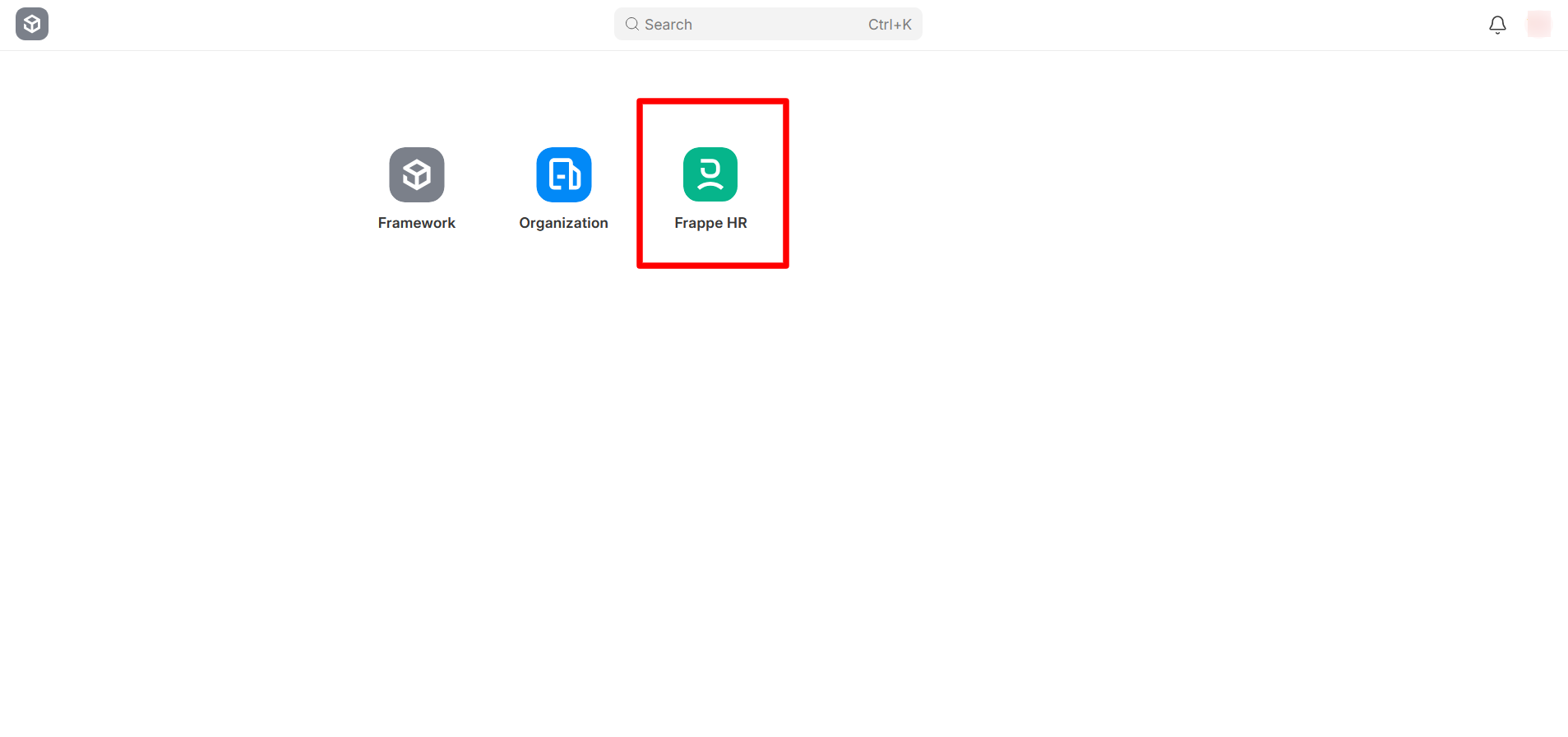
Step 1 — Open the HR Module
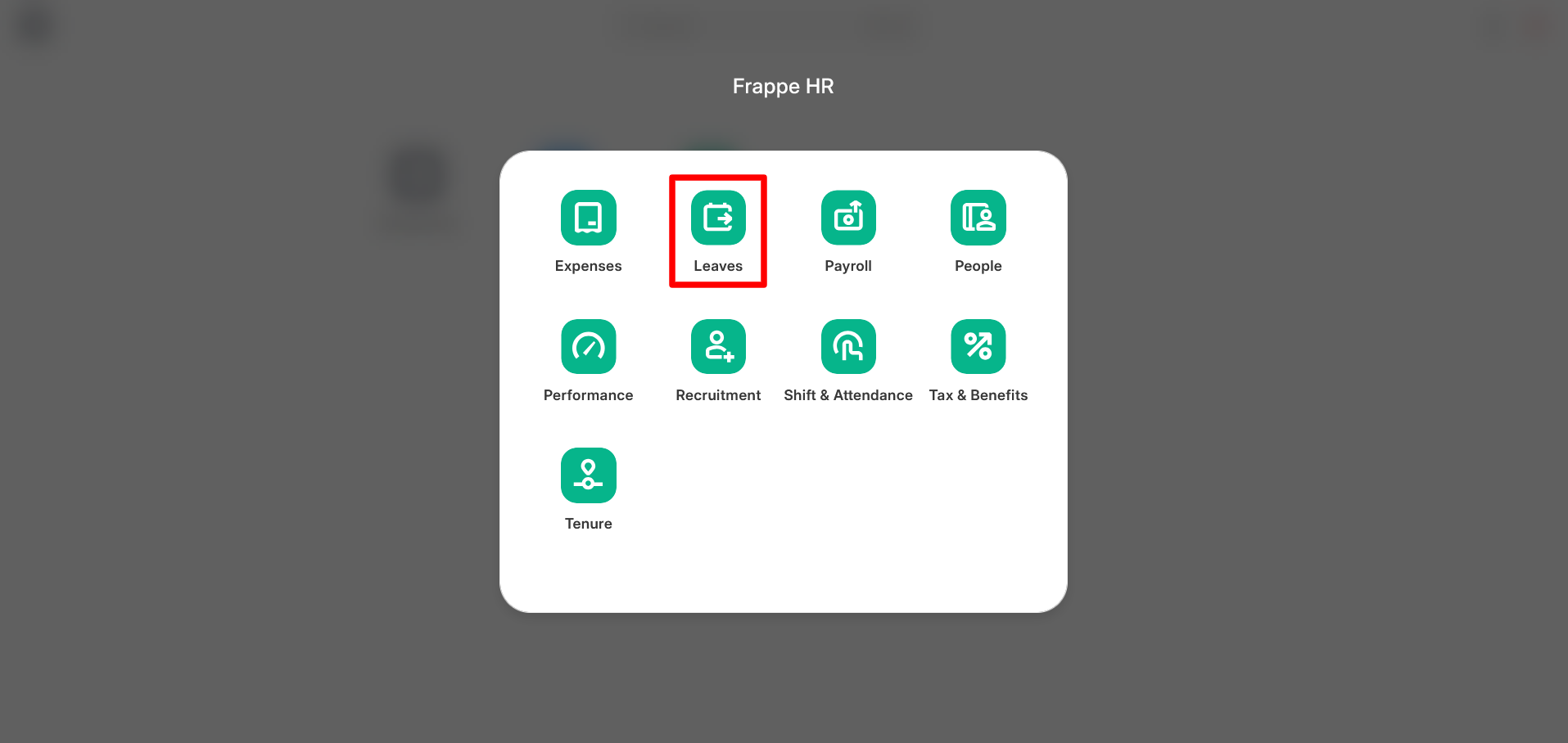
Log in to the Portal and click on the Frappe HR from the dashboard. And then select Leaves.
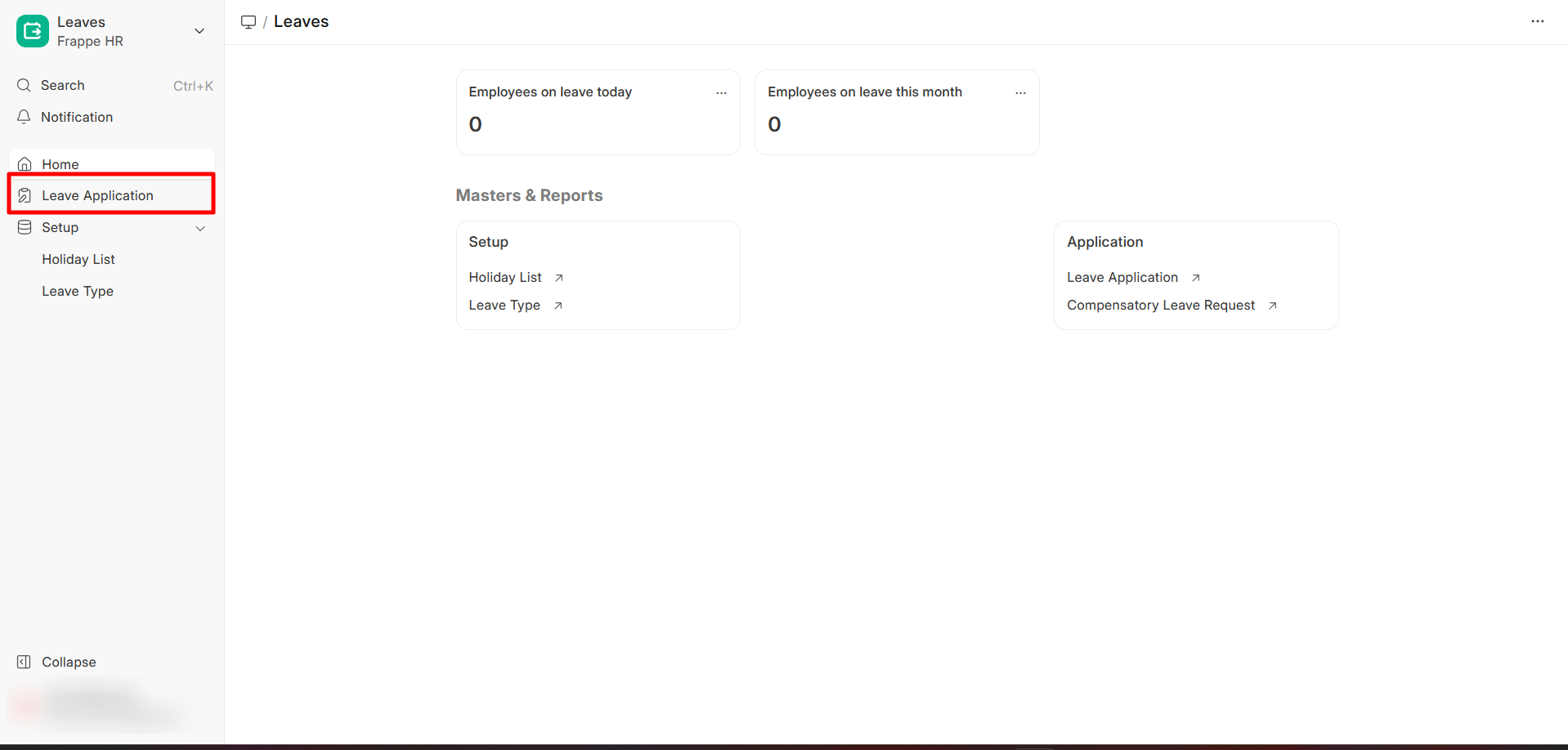
Step 2 — Open Leave Application
Click on Leave Application.
Step 3 — Create a New Request
Click New from the top right corner.
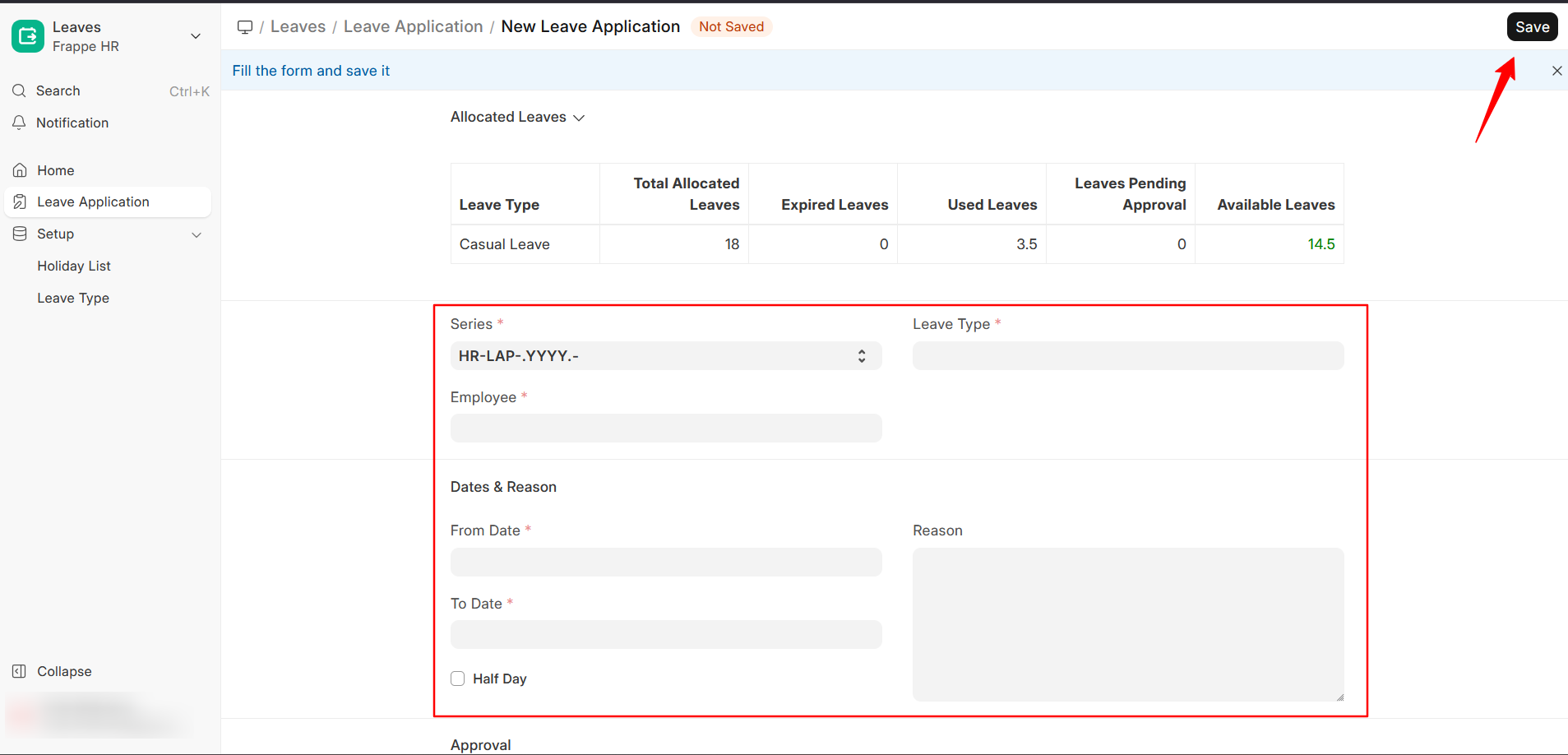
Step 4 — Enter Details and Submit
Fill in the following fields:
- Leave Type
- From Date and To Date
- Reason for Leave
Then click Save, followed by Submit.
Your leave will be reviewed by your reporting manager or HR.
| Status | Meaning |
|---|---|
| ⏳ Pending | Awaiting approval |
| ✅ Approved | Leave confirmed |
| ❌ Rejected | Leave not approved |
Quick Path: Login → Frappe HR → Leaves → Leave Application → New → Submit
2. 📅 How to Check Holidays
Step 1 — Open the HR Module
Log in to the Kiara People Portal and click on the Frappe HR -> Leaves from the dashboard.
Step 2 — Open Holiday List
Click on Holiday List.
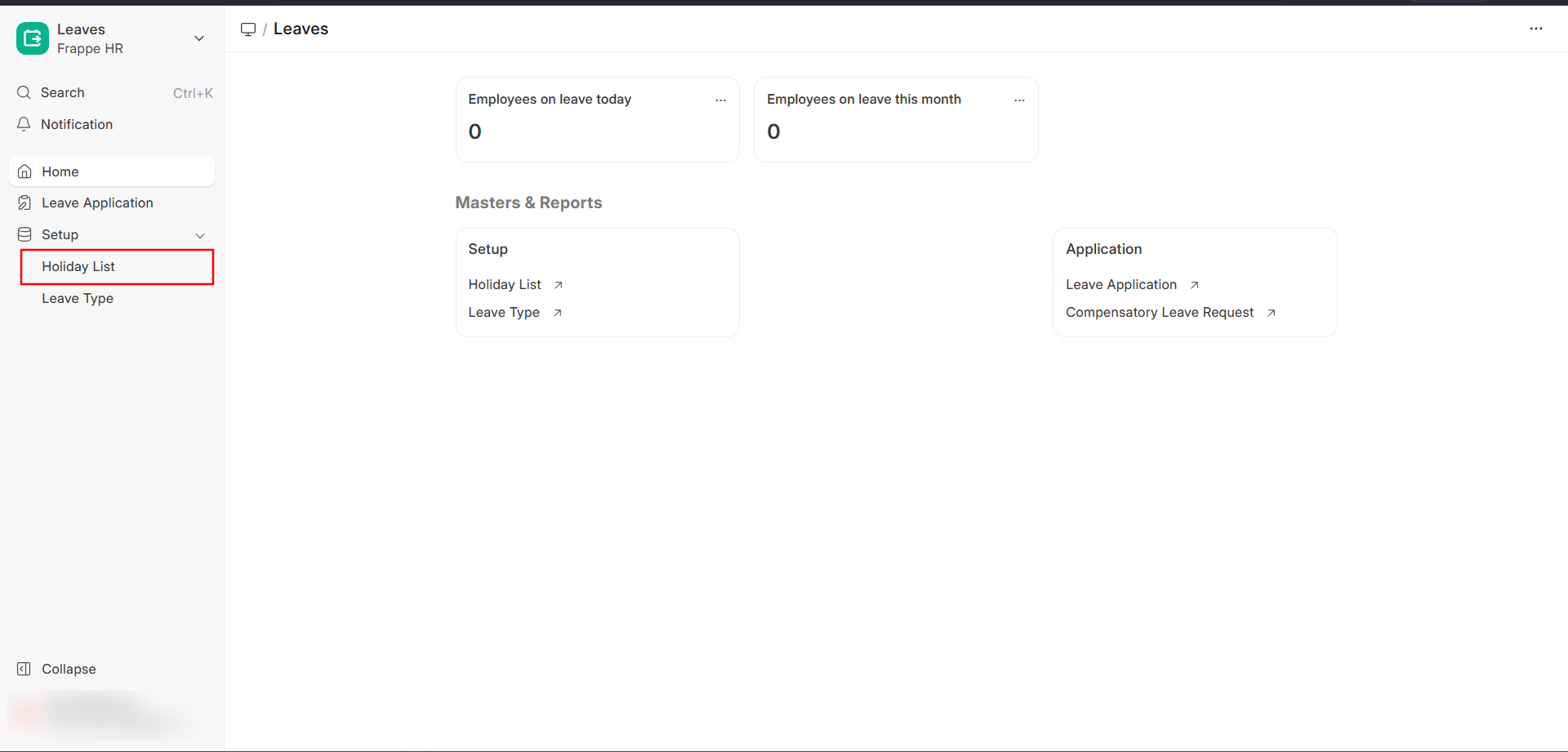
Step 3 — Select Your List
Choose the current year's holiday list (e.g., Company Holiday List 2026).
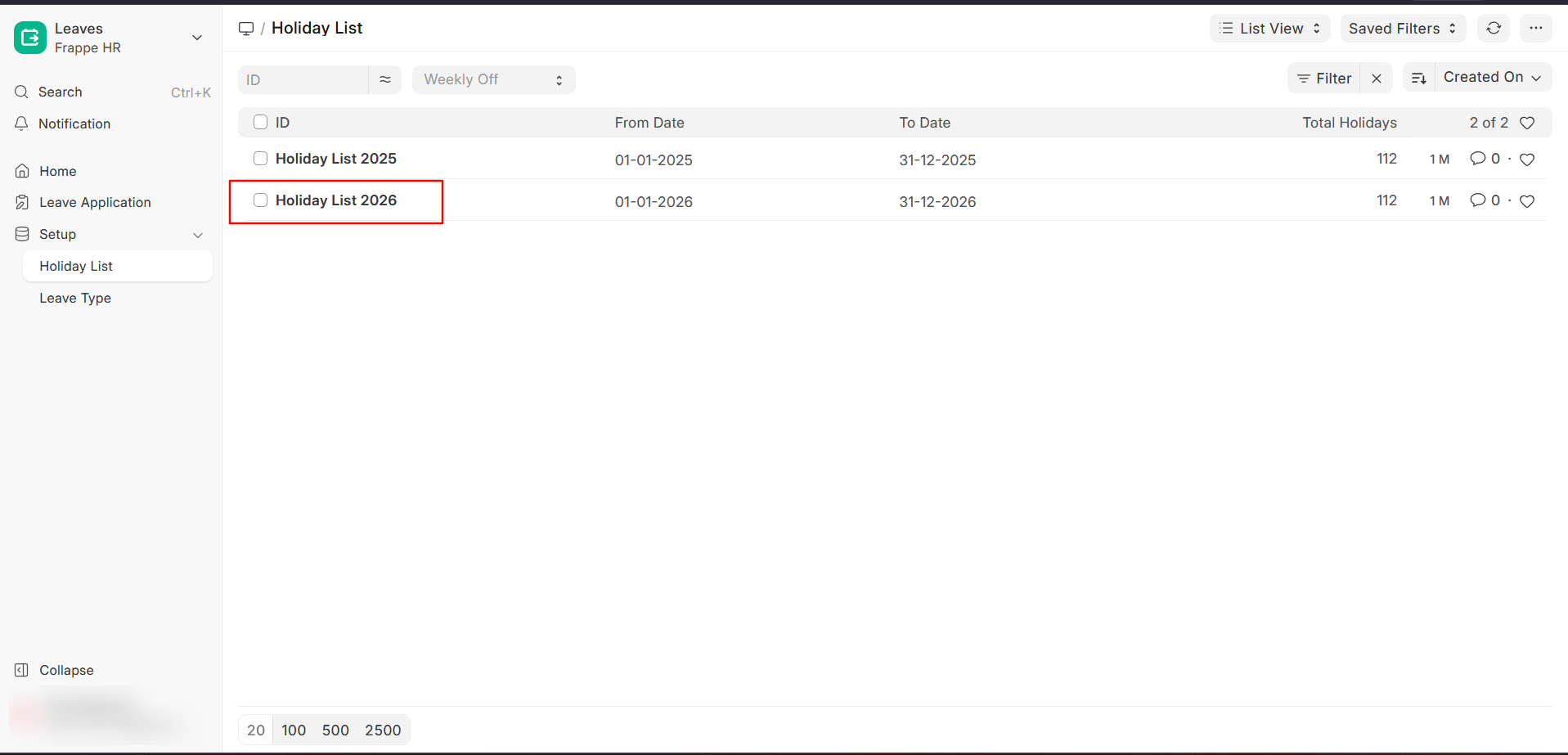
Step 4 — View Holidays
Browse all holidays for the year.
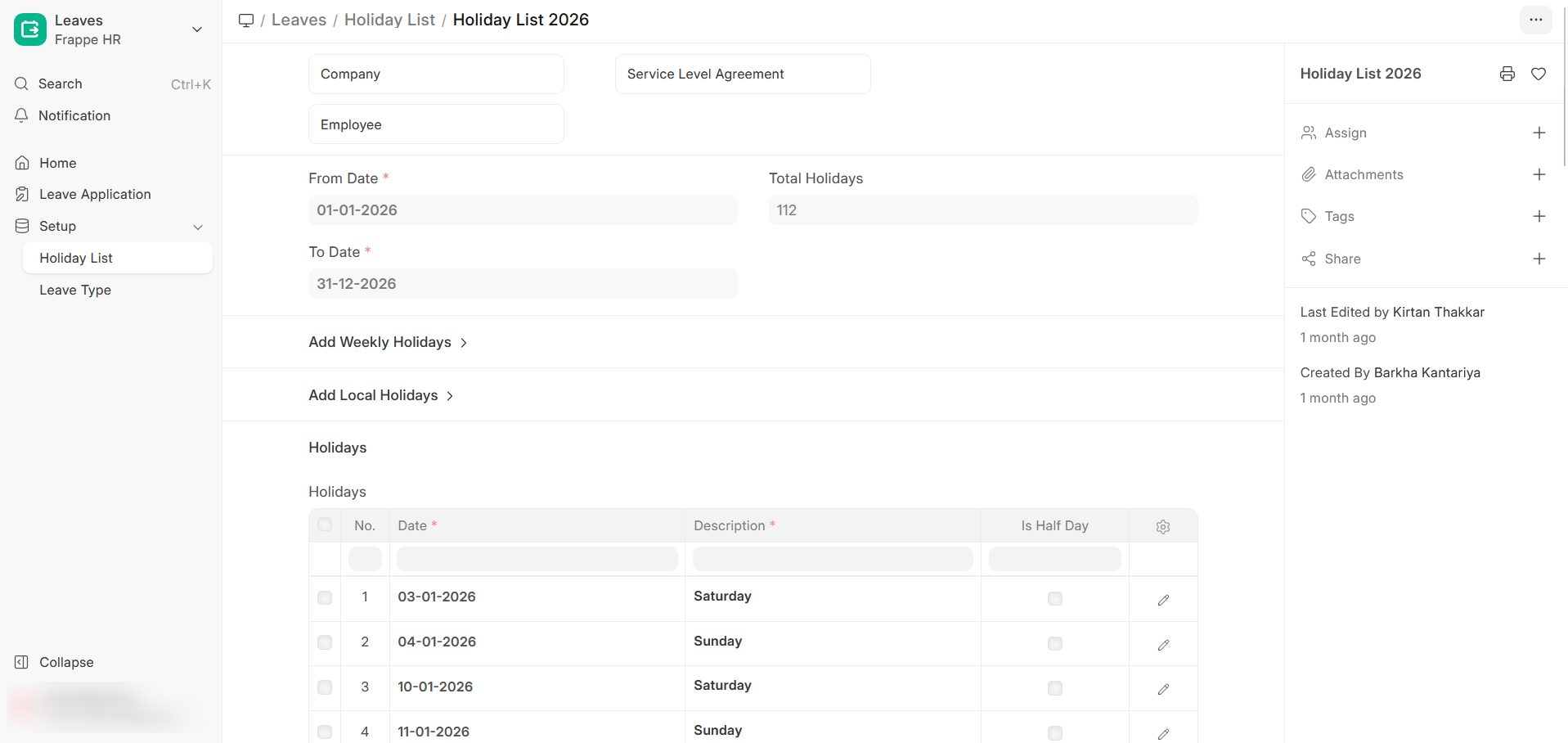
Note: This list includes all the weekends as well.
Quick Path: Login → Frappe HR → Leaves → Holiday List → View Holidays
3. 💰 How to View and Download Salary Slip
📌 All salary slips from October 2025 onwards are available on the Kiara People Portal.
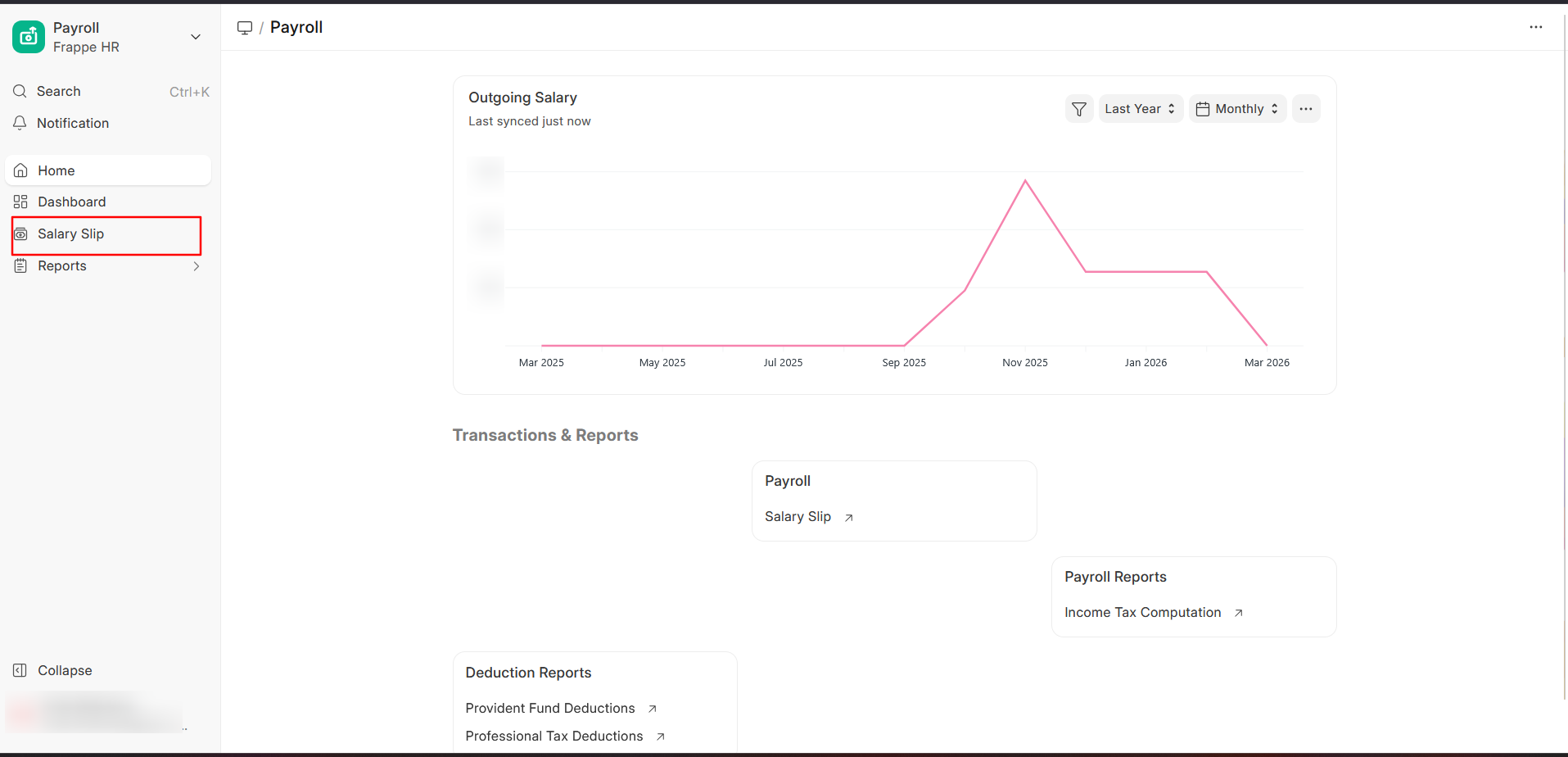
Step 1 — Open the Payroll Module
Log in to the Kiara People Portal and click on the Frappe HR -> Payroll from the dashboard.
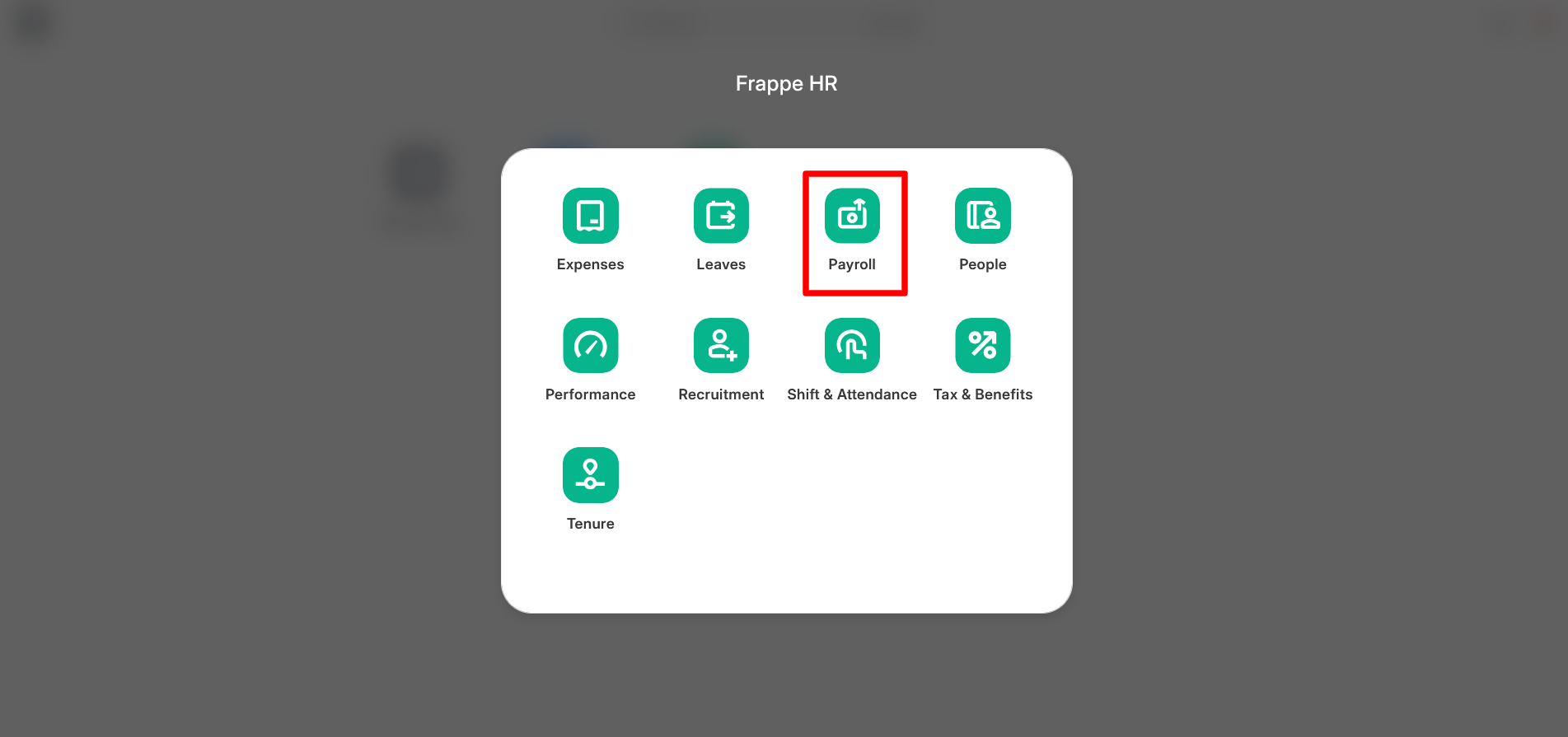
Step 2 — Open Salary Slip
Click on Salary Slip in the HR section.
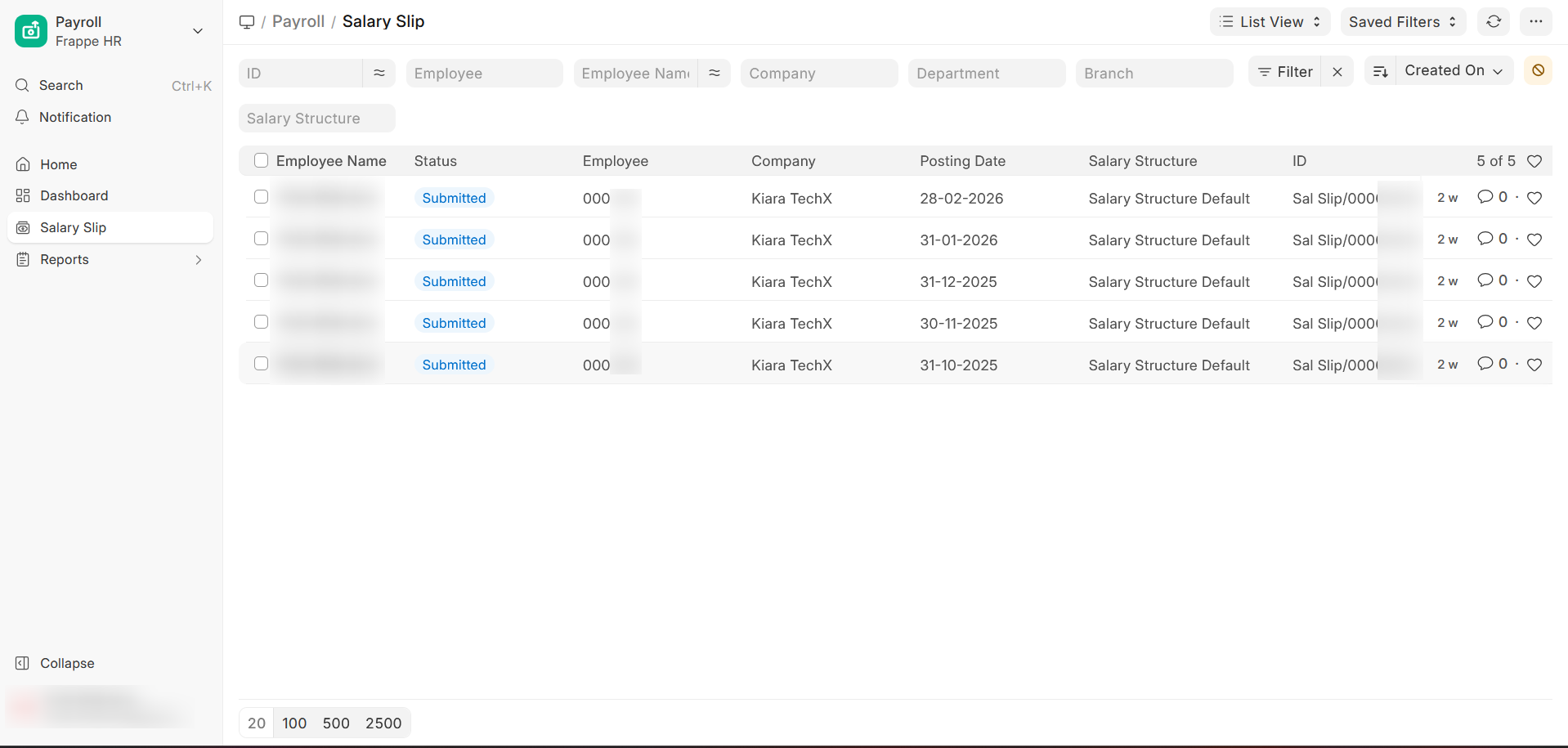
Step 3 — Select Date
Choose any payslip entry based on the date.
Step 4 — View or Download
- Click to view salary details.
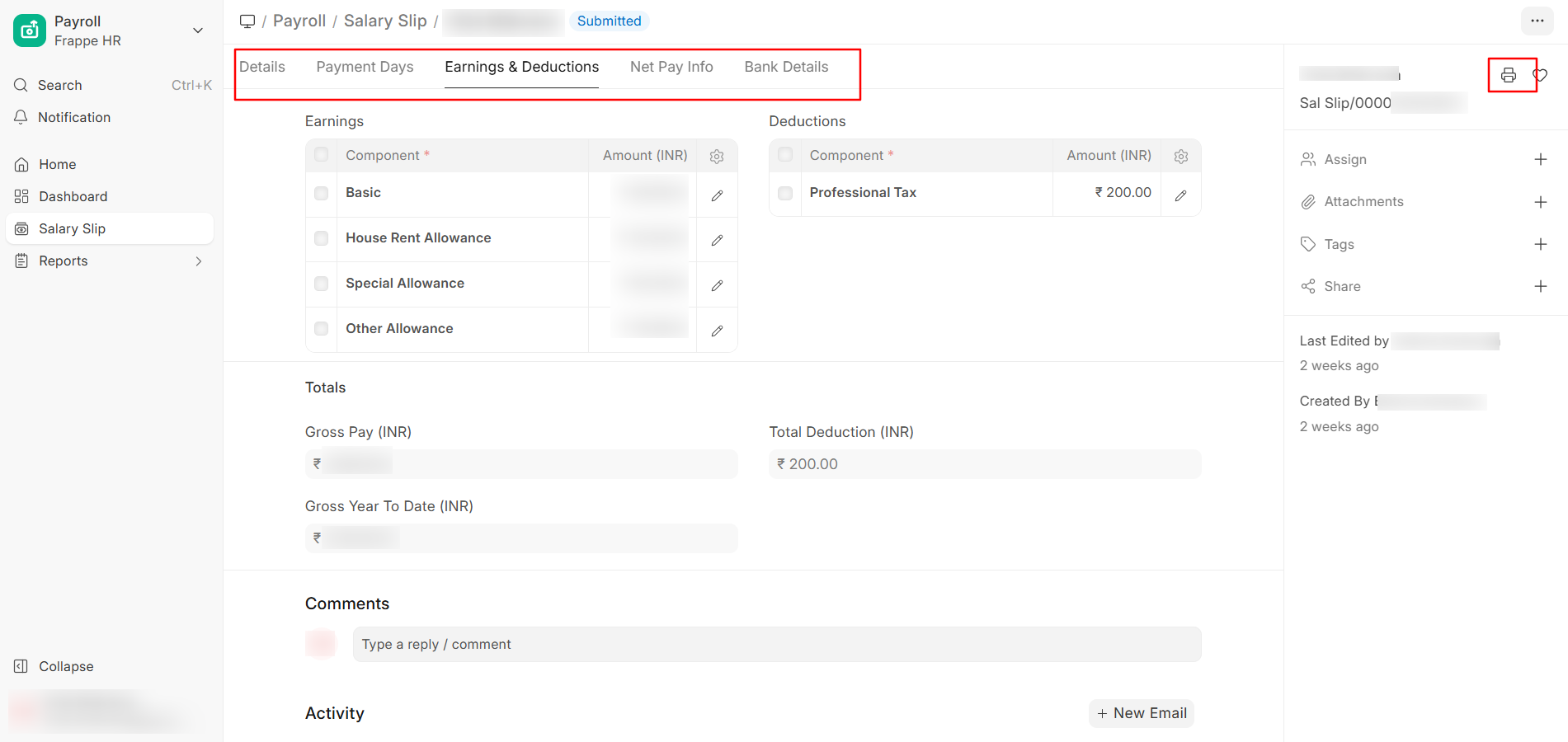
- Click Print or the download icon to save the salary slip as a PDF. Select PDF after Print Button click to download the Salary Slip PDF.
Quick Path: Login → Frappe HR → Payroll → Salary Slip → Select Month
4. 👤 How to Update Personal Details
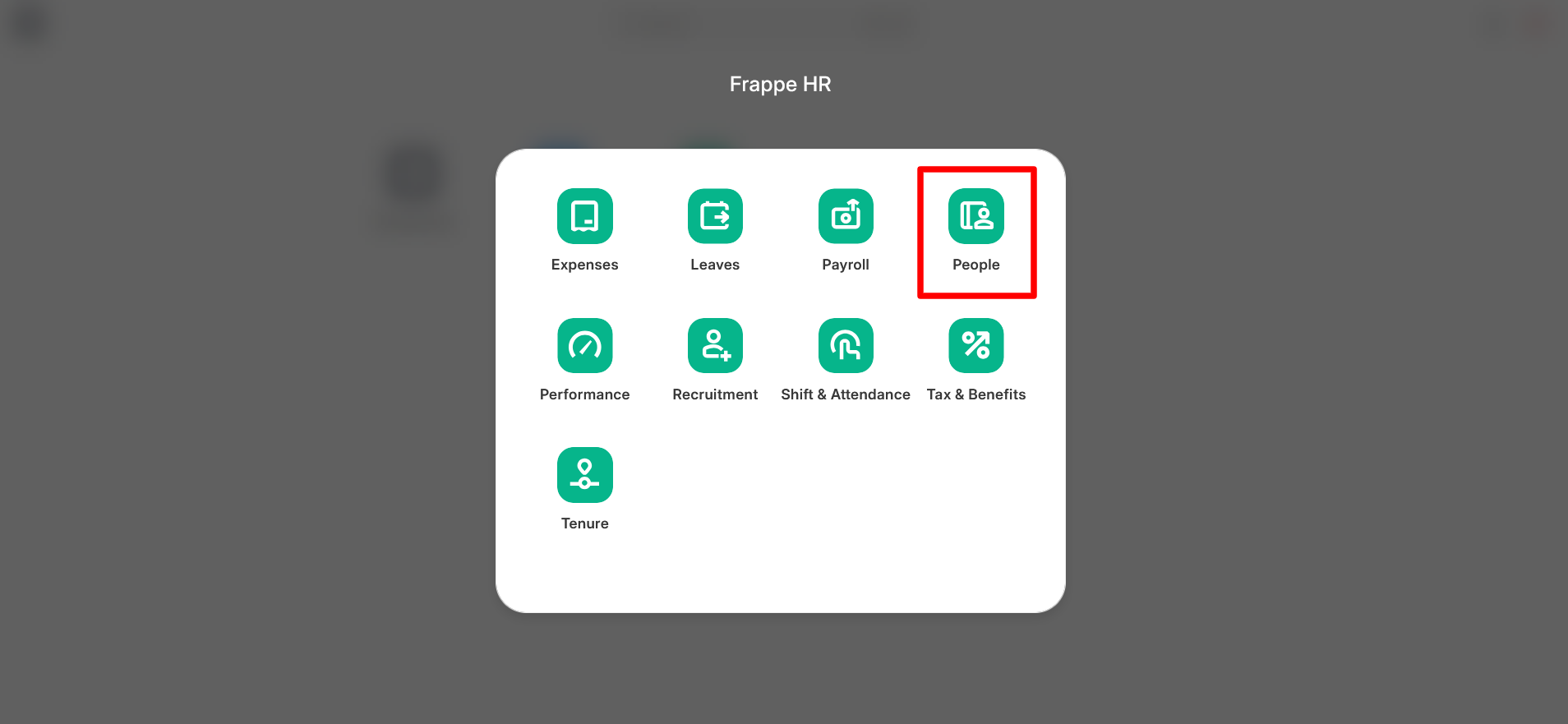
Step 1 — Open Profile Details
Log in to the Portal and click on People -> Employee from the user menu (top-right corner).
Step 2 — Update Information
You can update the following fields:
- Address
- Phone Number
- Emergency Contact
- Bank Details
Step 4 — Save Changes
Click Save to apply your updates.
Quick Path: Login → People → Employee
🆘 Support & Assistance
If you face any issues, contact HR Team.