✅ Task Management Guidelines
Plane - Task Management Service
Plane is an open-source, self-hosted project management tool that helps teams efficiently plan, track, and manage their work. It offers features like issue tracking, sprint management, and knowledge management.
How to Get Access?
-
Request an Invitation:
Ask your manager for an invitation to thekiara-techxPlane workspace you are working on. -
Check Your Email:
You will receive an email invitation from the Plane workspace. -
Join the Workspace: Click the "Join" button in the email. You will be redirected to the Plane homepage.

-
Request Project Access (If Needed): If you don’t see your project, ask your manager for access.
-
Find Your Projects: Once you have access, your projects will appear under the "Projects" tab in the left menu.
-
Access Work Items: You can now manage and track work items in your assigned projects.
Work Items
Navigate to the "Projects" tab in the left menu. Under project options, you will find "Work Items." Here, you can adjust the view, filters, and sorting for all work items.
 Example: Kanban Board View
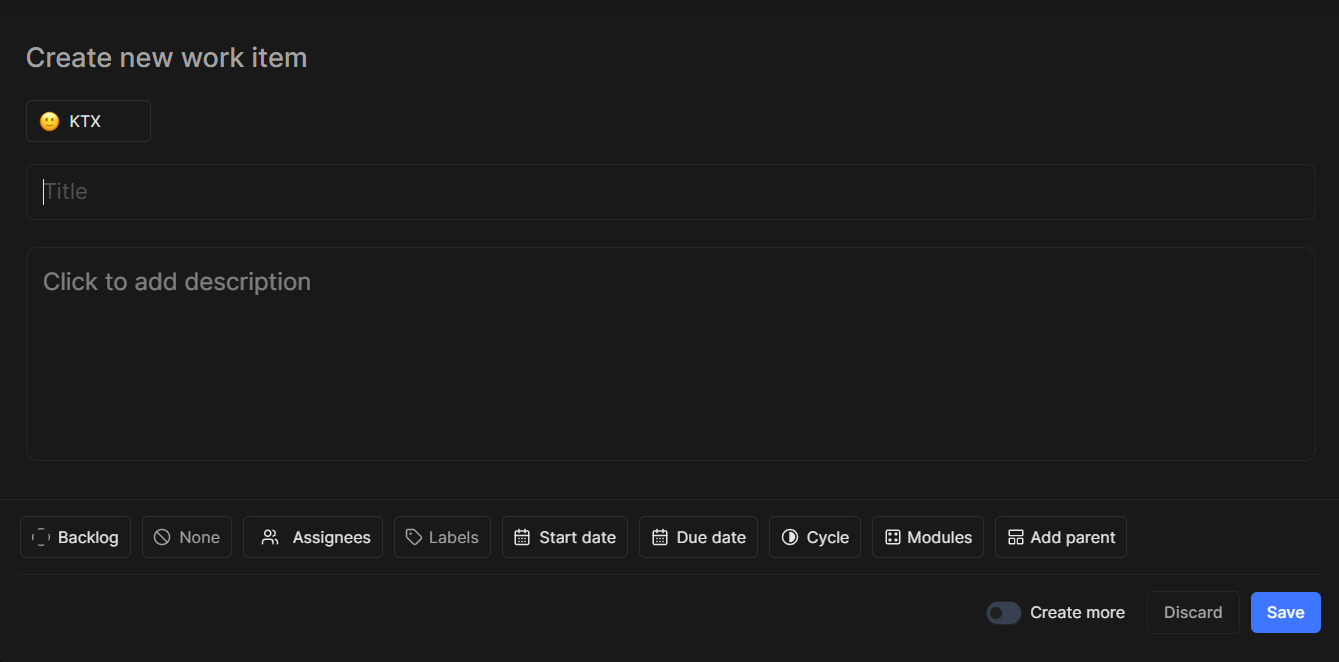
How to Create a Work Item?
-
Click the "Add Work Item" button in the top-right corner of the Work Items view.
-
Fill in the required fields:
-
Project – Select the project this work item belongs to.
-
Title – Provide a short, clear name for the task.
-
Description – Explain the task in detail, including any necessary context.
-
Status – Choose the current progress stage (e.g., To Do, In Progress, Done).
-
Priority – Set the urgency level (e.g., Low, Medium, High, Critical).
-
Assignee – Assign the task to a team member responsible for it.
-
Labels – Add relevant tags to categorize the task (e.g., Bug, Feature, Documentation).
-
Start Date – Specify when work on this item should begin.
-
End Date – Set the deadline for completion.
-
Cycle – Link the task to a sprint or iteration if applicable.
-
Module – Indicate the specific module or feature related to the task.
-
Parent Work Item – If this is a subtask, select the main task it belongs to.
-
General Guidelines
-
Keep work items updated: Ensure status, progress, and details are accurate.
-
Use clear and concise descriptions: Make tasks understandable for all team members.
-
Follow priority levels: Work on high-priority items first.
-
Link relevant resources: Attach documents, PR links, or any related materials.
-
Communicate blockers early: If you’re stuck, inform your team as soon as possible.
-
Follow deadlines: Stick to start and end dates to maintain workflow efficiency.
-
Assign work items appropriately: Ensure each task has a responsible owner.
Useful Links
-
Login: Plane Login
-
Home: Plane Homepage